
Step 1
Please open the GenTech app on your device and press on the "Options" button in the bottom left corner.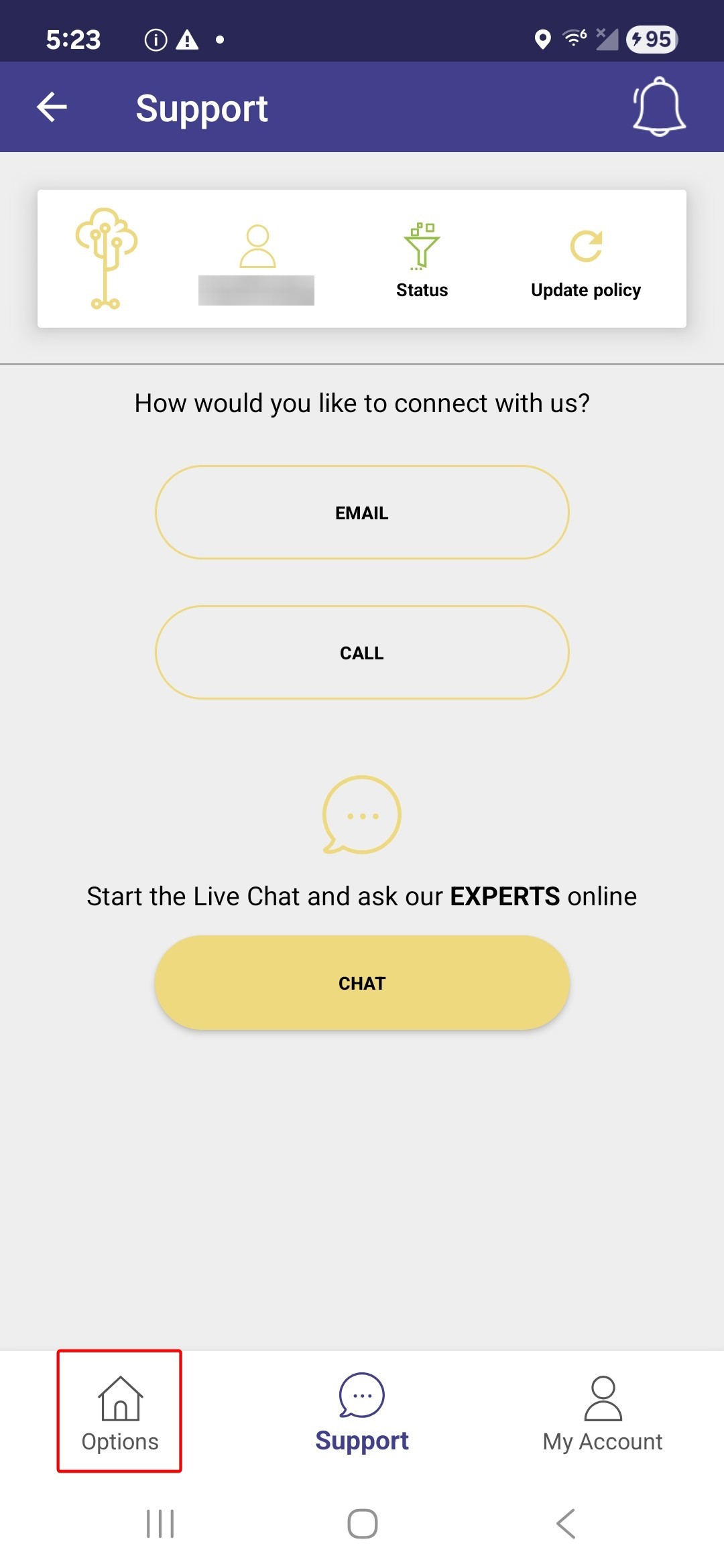
Step 2
In the "Options" menu, please tap on "About"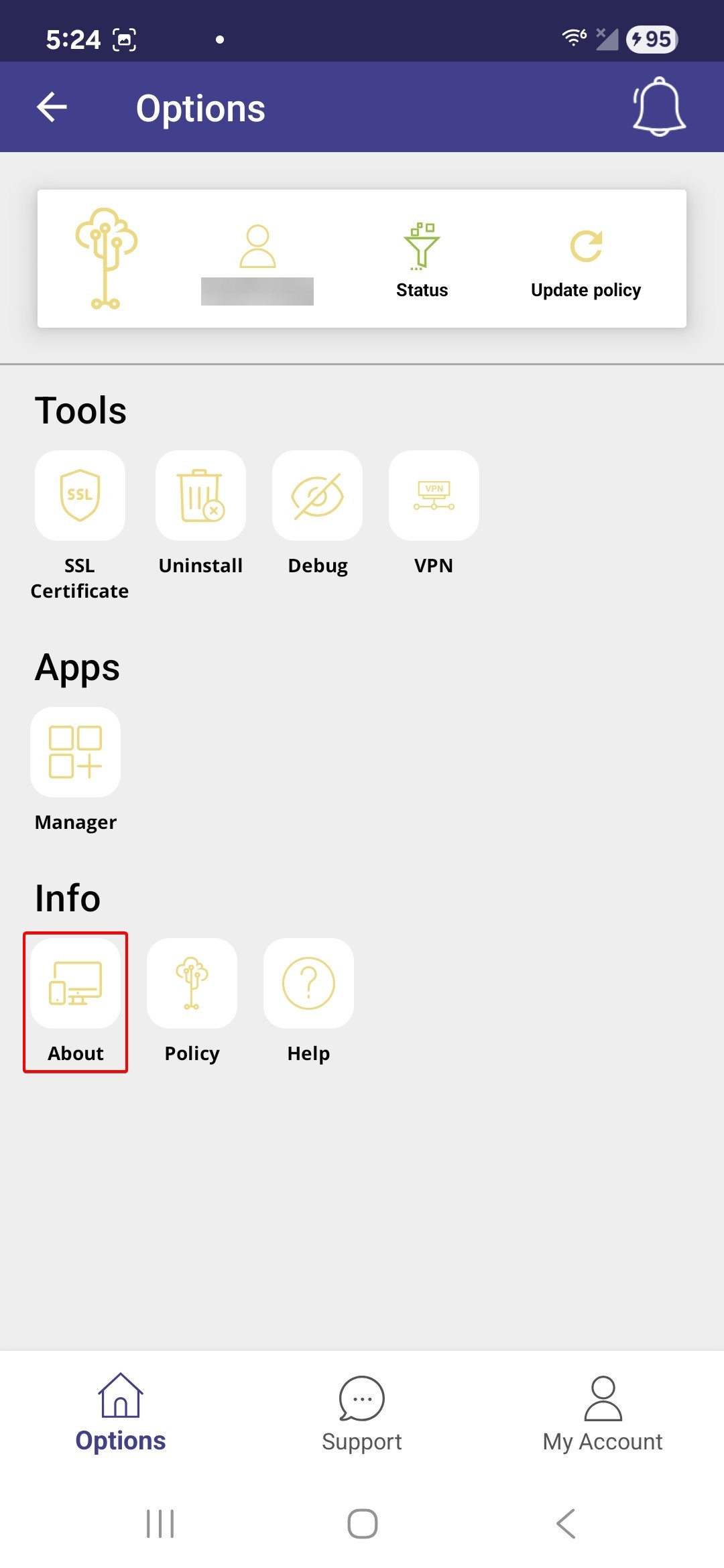
Step 3
In the "About" menu, please tap on "Check for updates".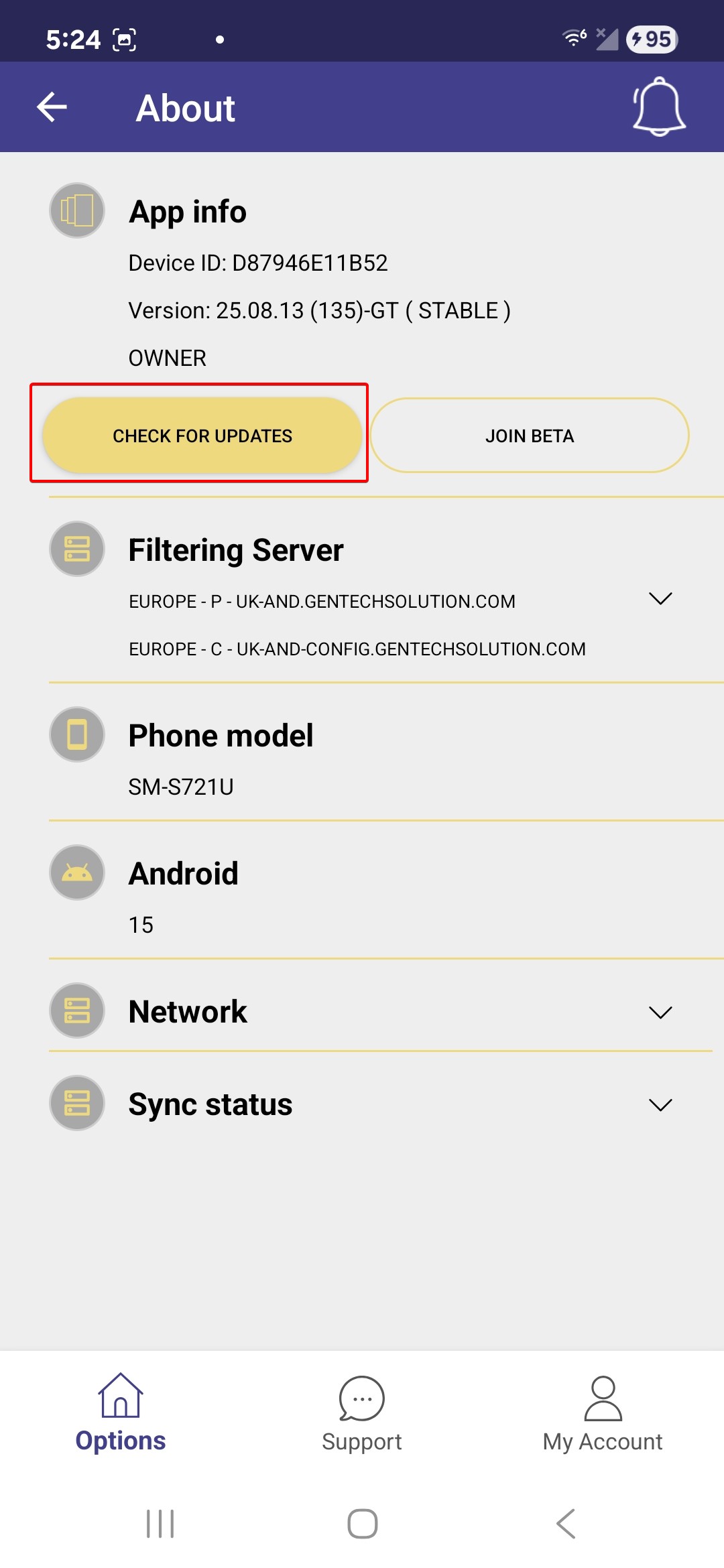
Step 4
A pop-up will come up saying that "An update has been released". Please press on "Install updates" which will start the update process. The next two steps are optional, depending on your preference.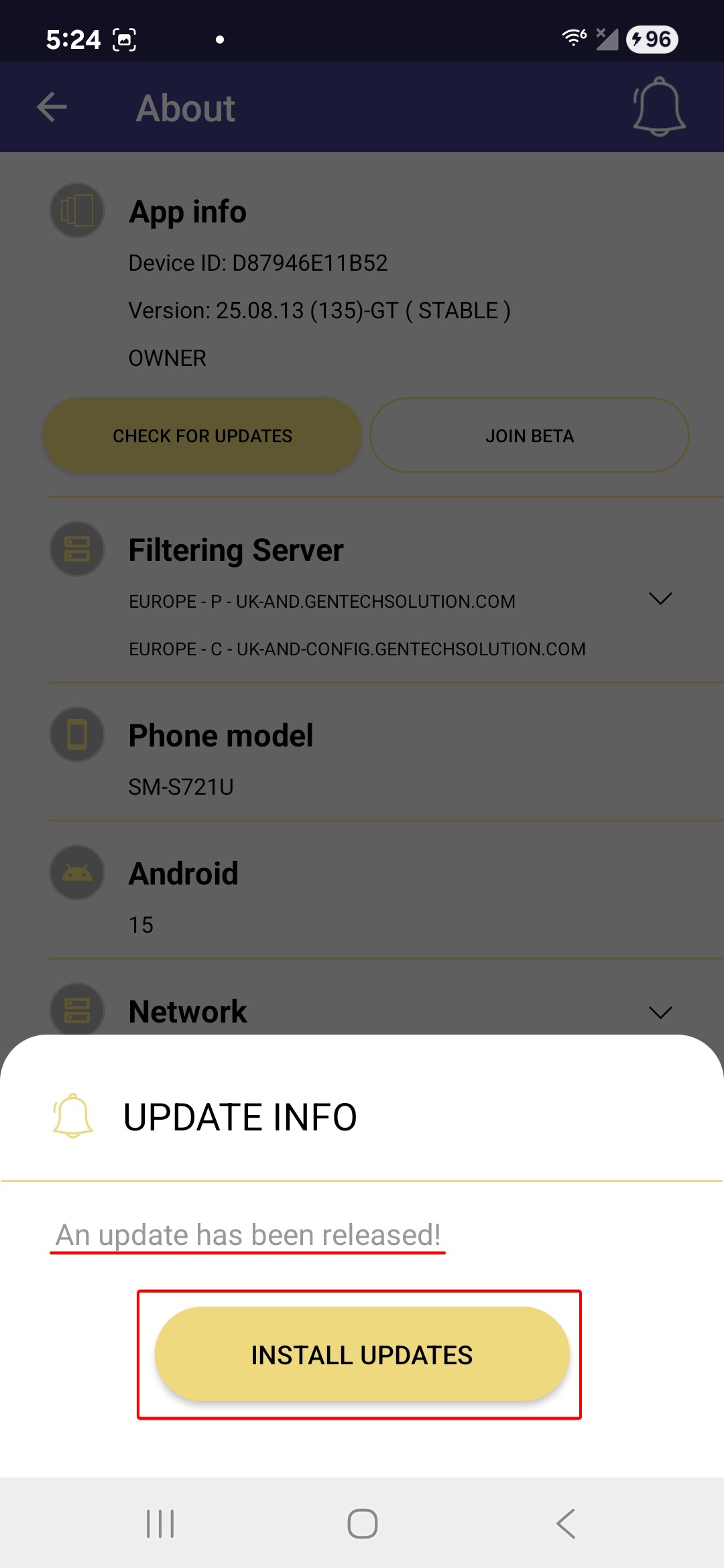
Step 5 - OPTIONAL
Once the download is complete, you will receive a notification on your device that a "New Version is available". You can choose to ignore it or tap on it. The update process will complete automatically in the next couple of days if you choose to ignore it.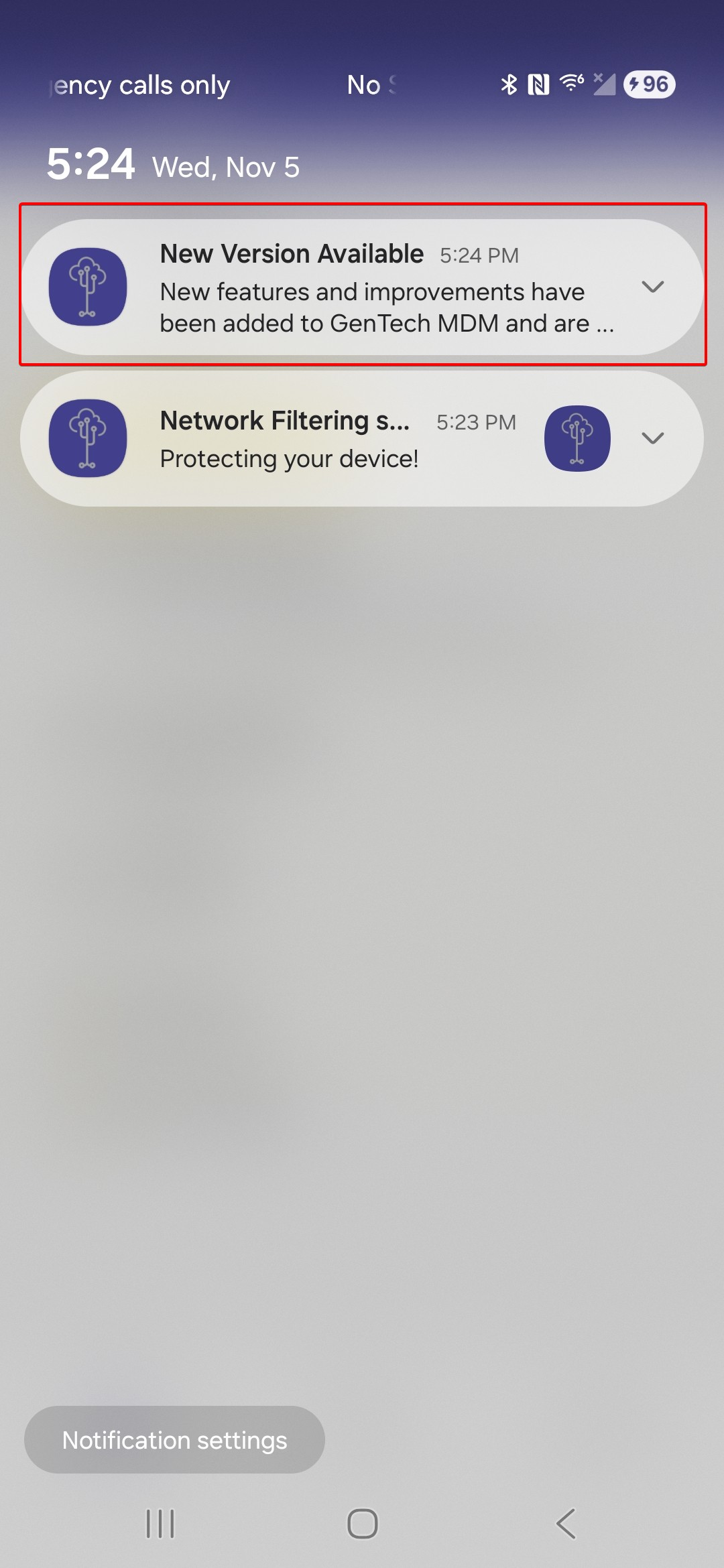
Step 6 - OPTIONAL
If you choose to tap on the notification, you will be presented with an option to install the update now or schedule the update. Once the update is started, it may take up to 10-15 minutes to complete.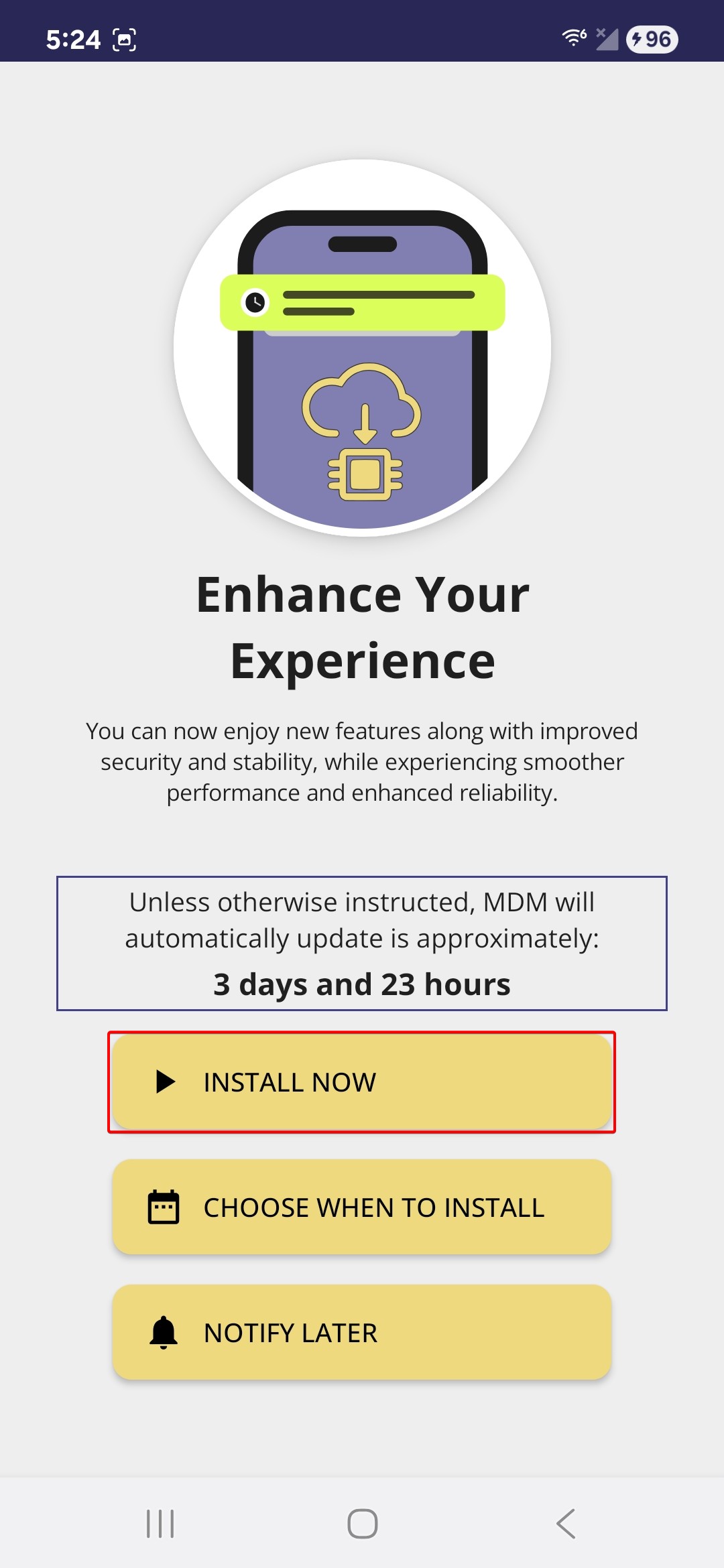
If you require any assistance while following these steps, please reach out to us at any time via email support@gentechsolution.com, WhatsApp, Chat or call 718-Gen-Tech (436-8324) and one of our professional team members will be glad to assist you.